

Kirabet runs on iPhone and iPad through Safari or Chrome, and you can add it to your Home Screen so it opens like an app. This guide shows players in the Maldives how to set up the Kirabet iOS app from the official link in under a minute.
There are two ways to put Kirabet on an iPhone in the Maldives. You can open the official download link, which recognises your device and sends you to the right place, or you can add the Kirabet site to your Home Screen straight from Safari or Chrome. Kirabet’s own download page describes the iPhone version as a Home Screen app, so that is the method this guide walks through step by step.
Whichever way you choose, you sign in with the same Kirabet account and see the same balance in MVR, the same bonuses and the same open bets as on the website or the Android app.
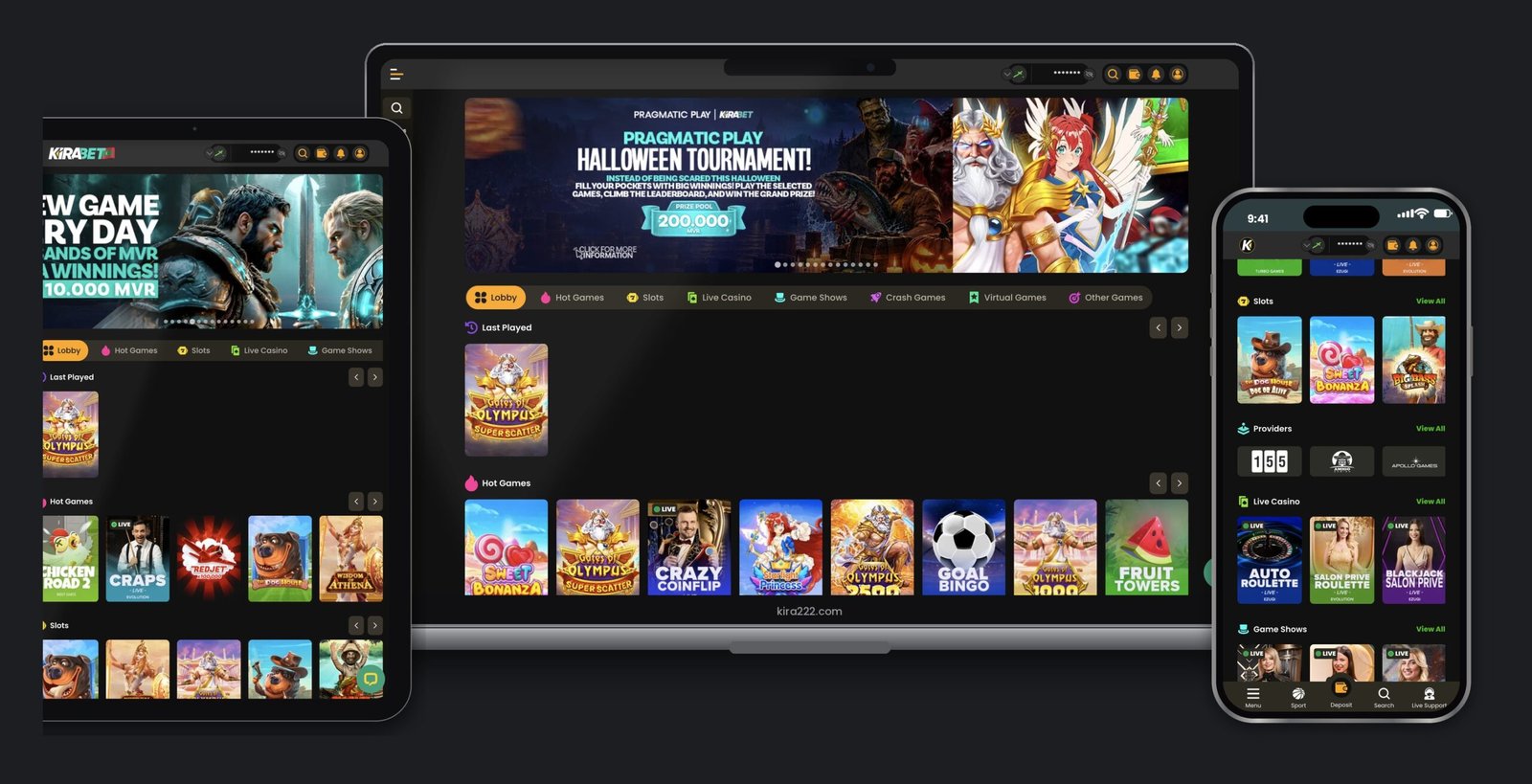
Opened from the Home Screen, Kirabet fills the whole screen without the Safari address bar, so it feels like any other app on your iPhone. These are the screens you will use most: the home page with sports and casino shortcuts, the casino lobby and the promotions page.
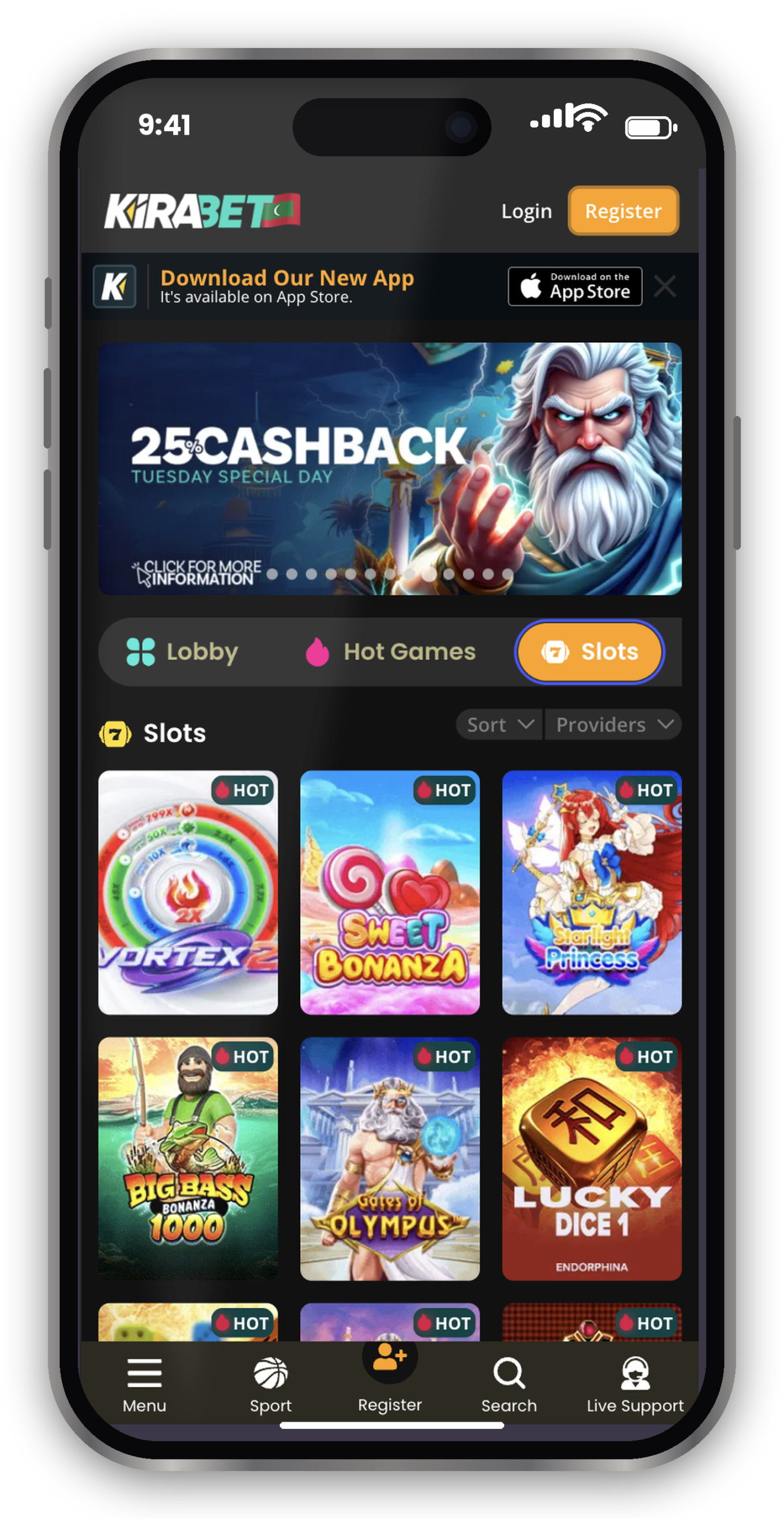
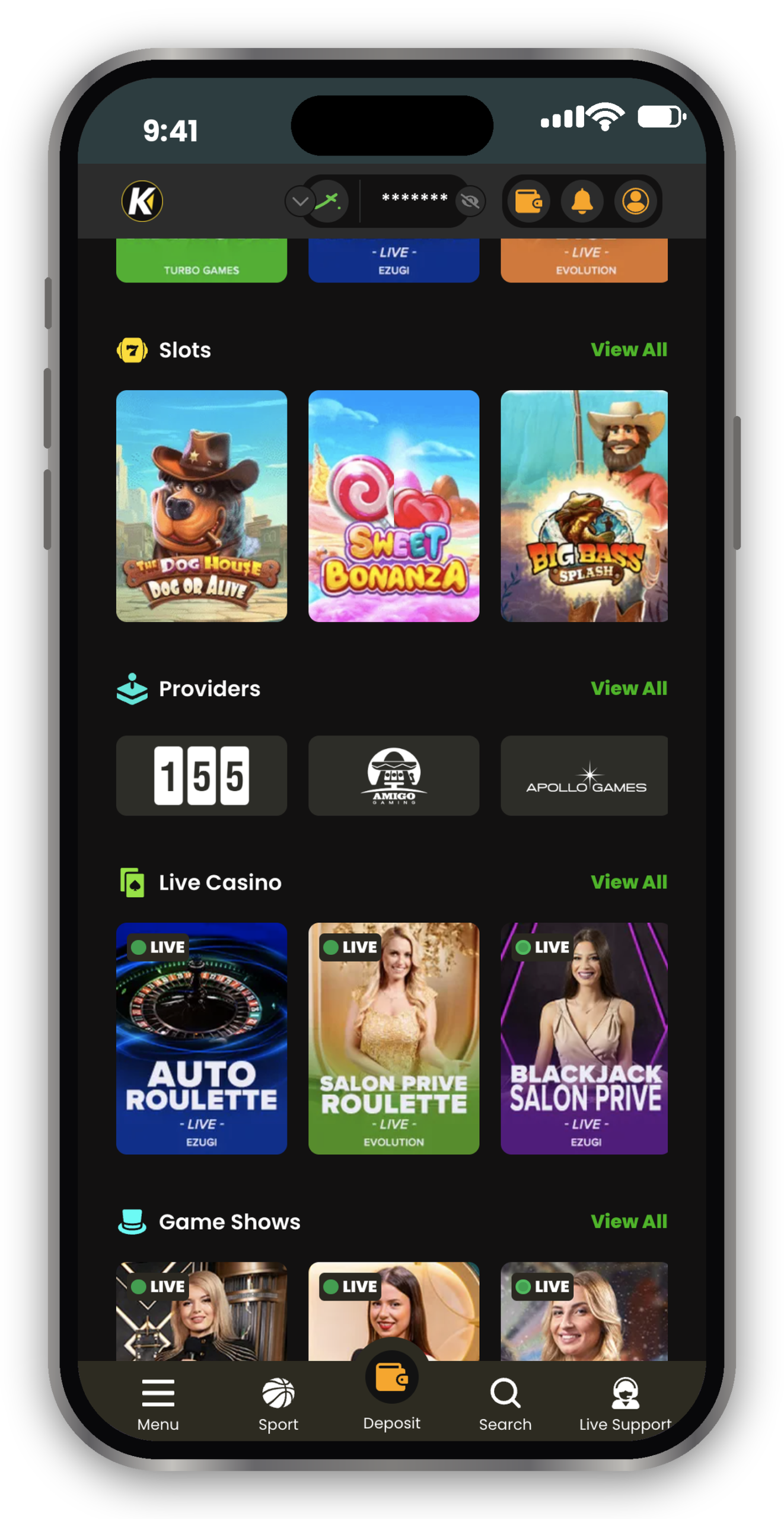
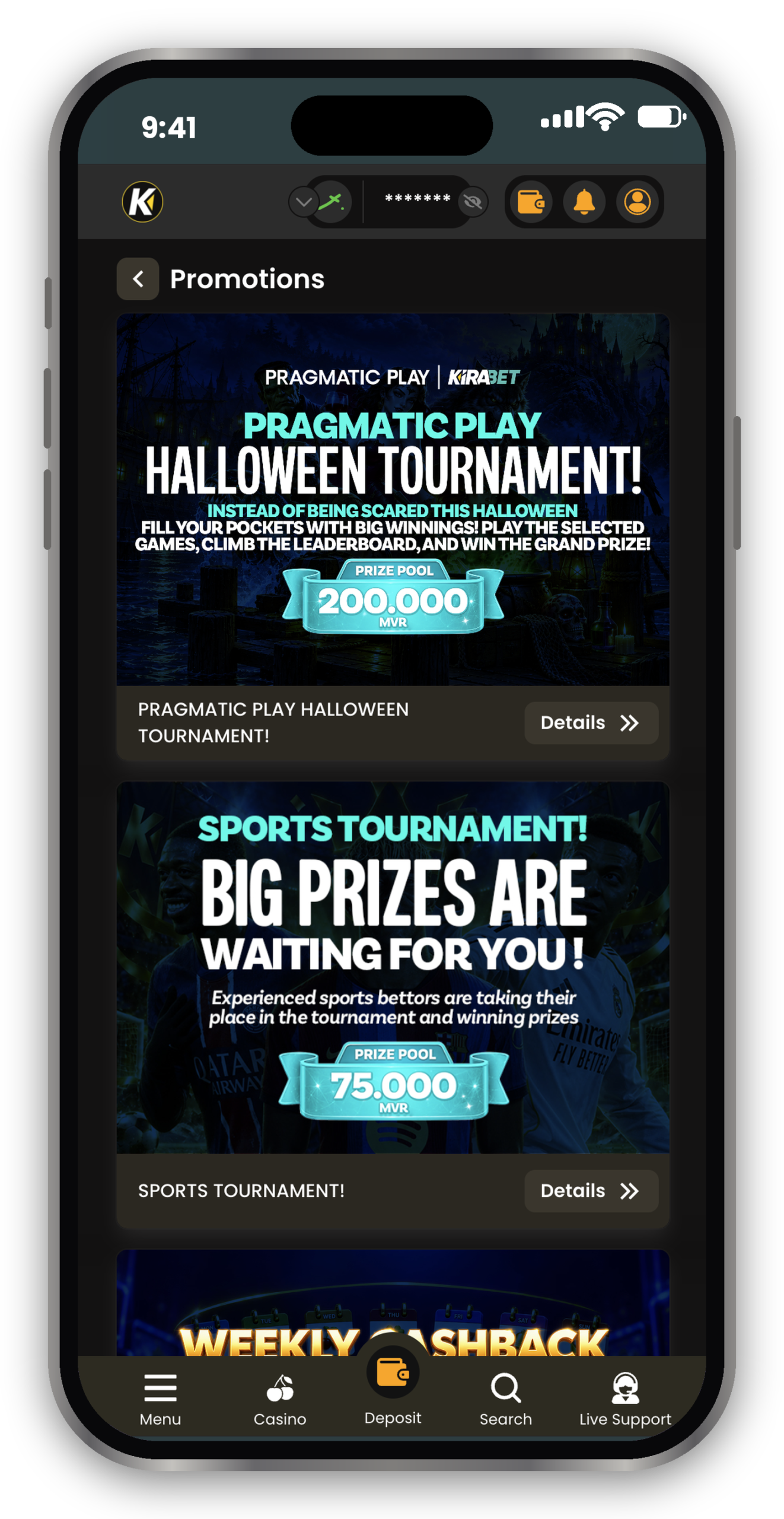
Both options end in the same place: a Kirabet icon on your Home Screen that opens your account. The difference is only how you get there.
There is no separate file to download and nothing to trust in Settings. Because the iPhone version loads directly from the Kirabet site, it takes up almost no storage and is always the current version.
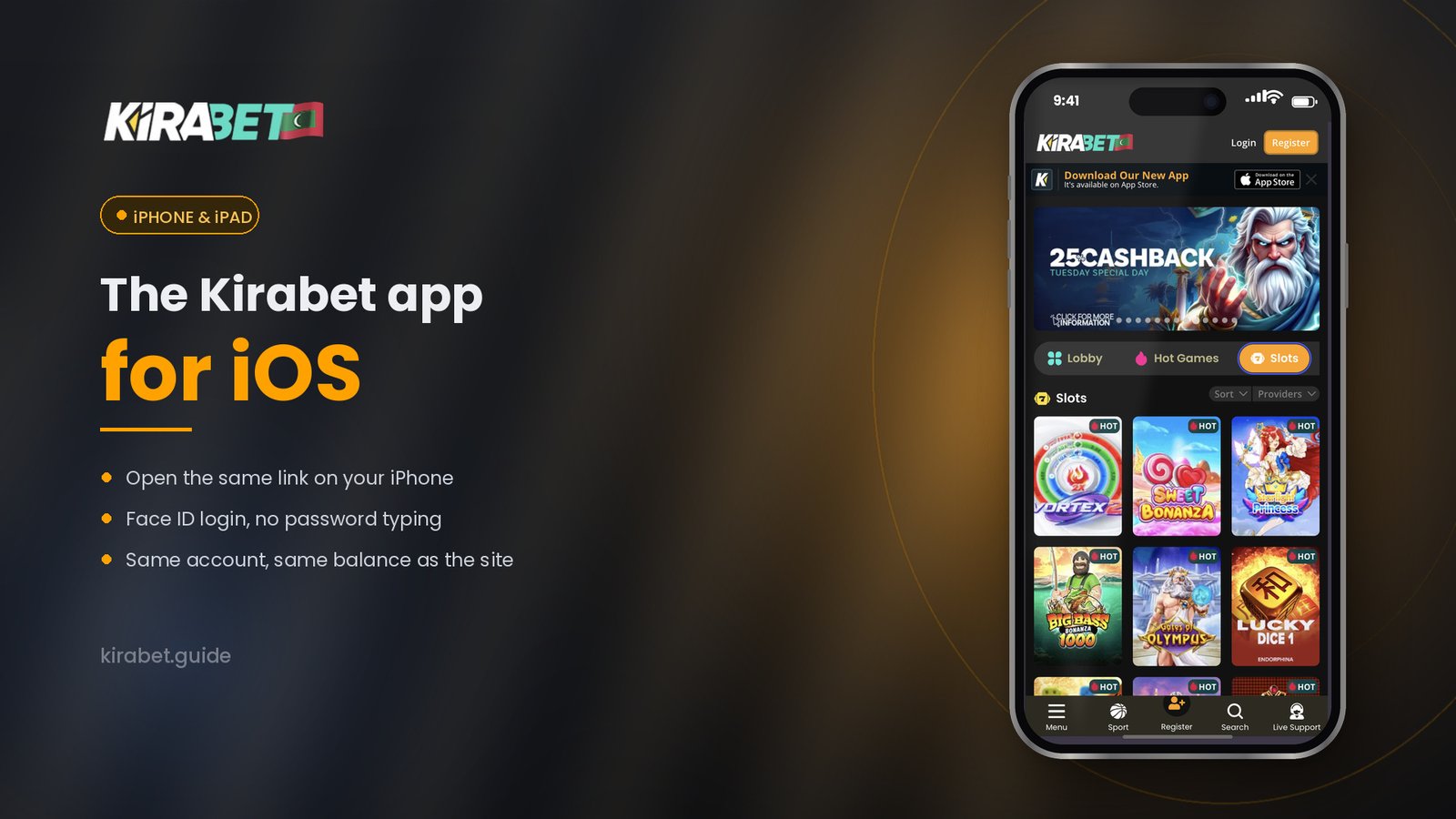
Depending on your iOS version, the Add to Home Screen screen may show an Open as Web App switch. Leave it on so Kirabet opens full screen like an app rather than as a Safari tab.
Adding sites to the Home Screen from Chrome needs iOS 16.4 or later. If you do not see the option, update iOS or use Safari instead.
The steps are the same on iPad. In Safari the Share icon is at the top right of the screen, next to the address bar. Kirabet adapts to the larger screen, so the sportsbook and casino lobby show more at once.
Both work. Safari is built into every iPhone and offers Add to Home Screen on every recent iOS version, so it is the simplest choice. Use Chrome if it is already your main browser and your iPhone runs iOS 16.4 or newer.
The Home Screen version of Kirabet loads the live site every time you open it, so there is nothing to download and no App Store update to wait for. New games, odds and promotions appear as soon as Kirabet publishes them.
Close Kirabet from the app switcher (swipe up from the bottom and hold, then swipe the Kirabet card away) and open it again. If it still looks wrong, press and hold the icon, remove it from the Home Screen and add it again with the Safari steps above.
Your balance, bonuses and bet history are stored in your Kirabet account, not on the phone, so removing and re-adding the icon does not affect them.
A copy of a betting site can look identical on the surface, and a Home Screen icon looks the same whichever site it points to. Check these before you add Kirabet to your iPhone.
Scroll further down the Share menu; it is below the row of apps and the first actions. In Chrome, update iOS to 16.4 or later, or switch to Safari.
Remove the icon and add it again. If you see an Open as Web App switch, keep it on before you tap Add.
Private Browsing does not keep you signed in. Add Kirabet from a normal Safari tab, and check that Safari is not set to block all cookies.
Check your mobile data or Wi-Fi, then close and reopen Kirabet. If it still does not load, open the official download link on this page again to reach the current Kirabet address, and add that to your Home Screen.
| Kirabet in a Safari tab | Kirabet Home Screen app | |
|---|---|---|
| Installation | None | Add to Home Screen, a few seconds |
| Updates | Automatic | Automatic |
| Where you open it | Address bar or bookmark | Icon on the Home Screen |
| Screen space | Safari bars visible | Full screen |
| Account and balance | Same | Same |
| Storage used | None | Almost none |
If you would rather not add anything to your iPhone, the Kirabet mobile site in Safari gives you the same account and the same games. The Home Screen app is a convenience, not a requirement.
Yes. Kirabet works on iPhone as a Home Screen app: you add the official site to your Home Screen from Safari or Chrome and it opens full screen like any other app. Kirabet’s download page has a dedicated iOS option for this.
The Kirabet site shows a “Download our new app” banner, and its download page describes the iPhone version as a Home Screen app that you add from Safari or Chrome. Open the official download link on your iPhone to see the option currently offered, and be careful with App Store apps from other developers that use the Kirabet name.
Yes. Adding Kirabet to your Home Screen costs nothing and needs no payment details.
No. Sign in with the account you already use on the website or Android app. Your MVR balance, bonuses and bets are the same everywhere.
Yes. The wallet works exactly as on the website: deposits by bank transfer with BML or MIB, the USD BML account, e-wallets or crypto, and withdrawals by bank transfer. See deposits and withdrawals for limits and processing times.
You do not need to. It loads the live Kirabet site each time, so you always have the current version.
Yes. Use the same Add to Home Screen steps in Safari; the Share icon is at the top right on iPad.
An app on the home screen makes it easier to play more often than you meant to. A 7-day cooling-off period and self-exclusion are available on request from Kirabet Live Support; our responsible gambling page explains how. Betting is for adults only and should never be treated as a way to make money.